New Media PC for the living room

Posted in Hard Stuff on December 28th, 2009

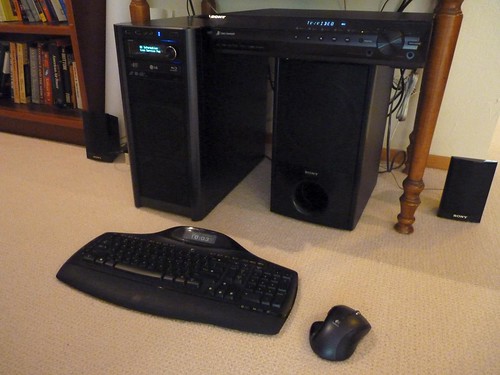
We needed a media PC to drive a 46″ display in our living room. I saw an article in the May 2009 Maximum PC and basically followed their recipe when I built this system in August.

Picture 002

The system has been solid and very quiet. It draws 55-65 watts up and running and the box cost $600 in parts, keyboard and mouse $140, 5.1 amp with speakers $240. About $1,000 when you include cables. This system has been donated to the nonprofit Autistry Studios.

AMD Phenom 9350e Agena 2.0GHz Socket AM2+ 65W Quad-Core Processor Model HD9350ODGHBOX – Retail $99.99
http://www.newegg.com/Product/Product.aspx?Item=N82E16819103293
JetWay JNC62K-LF AM2+/AM2 NVIDIA GeForce 8200 Mini ITX AMD Motherboard – Retail $129.99
http://www.newegg.com/Product/Product.aspx?Item=N82E16813153114
CORRSAIR XMS2 2GB 240-Pin DDR2 SDRAM DDR2 800 (PC2 6400) Desktop Memory Model CM2X2048-6400C5 – Retail $27.99
http://www.newegg.com/Product/Product.aspx?Item=N82E16820145201
Western Digital Caviar Black 500 GB Bulk/OEM Hard Drive 3.5 Inch, 32 MB Cache, 7200 RPM SATA II WD5001AALS $67.75
http://www.amazon.com/gp/product/B001GQYYSG/
Antec Three Hundred Gaming Case External 3 X 5.25; Internal 6 X 3.5 2*Usb2.0 $59.79
http://www.amazon.com/gp/product/B000GQMHBI/
LG Black 8X BD-ROM 16X DVD-ROM 40X CD-ROM SATA Internal Combo LG Blu-ray Reader & 16X LightScribe DVD±R DVD Burner – Retail $124.99
http://www.newegg.com/Product/Product.aspx?Item=N82E16827136162
Antec Mult-Station Elite Internal IR receiver w/ VFD and remote – Retail $69.99
http://www.newegg.com/Product/Product.aspx?Item=N82E16811999192
Sabrent CRW-UINB 68 in 1 Hi-Speed USB 2.0 Internal Memory Card Reader & Writer (Black) $15.98
http://www.amazon.com/gp/product/B000EWJYYW/
$596.47

Keyboard/Mouse:

Logitech Cordless Desktop MX 5500 Revolution $138.40
http://www.amazon.com/gp/product/B0011FQUQG/
$737.87

5.1 Surround sound system:

Sony BRAVIA DAV-HDX285 5.1-Channel Theater System (Black) $239.65
http://www.amazon.com/gp/product/B001UDGQ7W/
$974.52

How to delete GPT Protective Partition

Posted in Windows Details on December 10th, 2009

I loaned a portable USB 1 TB drive to someone recently and they accidentally horked it up pretty well. They attempted some fix up on it but when I mounted it on my system it did not appear in the list of disks under My Computer but it was listed as a device off the USB hub.

Opening Computer Management under XP Pro the disk was listed as a “GPT Protective partition” and no options were available for doing anything to it under the Disk Management applet. A GPT partition is a GUID Partition Table and is usable by Macs and Windows Vista and greater — but not XP which is what what I’m running.

A quick search found this procedure:

In Windows XP Professional, if you cannot access or modify GPT disk, you can convert a GPT disk to MBR by using the “clean” command in the command line application DiskPart, which will remove all data and partition structures from the disk.

1. Go to the DOS command line (click on “Start Menu”, then “Run”, type in “cmd” in textbox, and hit “OK”)

* Type in “DiskPart” in command line.
* Type in “list disk” in command line to show all disks in this machine.
* Use “select” to set the focus to the specified partition, for example “select disk 1″.
* Use “clean” command to remove GPT disk from the current in-focus disk by zeroing sectors.

2. Go back to Disk Management, the disk should be “unallocated” now. Right click on disk info, choose “Initialize Disk” then format it.

Warning: Duh: This command will of course erase all data on the disk, but if you got here, you couldn’t access it anyway!

Reduced to reblogging: a short Internet history

Posted in Campfire Stories on November 18th, 2009

I loved this post by Cameron Chapman at the Six Revisions blog.

ARPANET in 1977

ARPANET in 1977

I’m reblogging ’cause I’m busy but I’ll have my media PC build and description up soon.

Windows Command Line stuff

Posted in Essential Tools, The Art of Programming, Windows Details on July 10th, 2009

Creating scripts to automate administrative or programming build tasks is GOOD. It centralizes details and reduces errors.

I find I need to re-learn DOS (and *nix) command line stuff every few years and then I completely forget how to do it and have to learn again.

Resources that I find useful:

The Windows Command Line

Microsoft Windows XP – Using batch files

The Wumpus lives

Posted in On the coffee table, The Art of Programming on June 10th, 2009

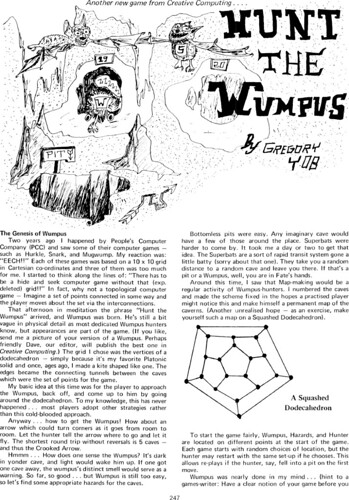
This is a great PHP version of the classic Hunt the Wumpus game of the 1970’s.

page247

This will make a great programming-class homework problem.

Teaching programming – part 2: how I tried it

Posted in Campfire Stories, The Art of Programming on June 10th, 2009

So I’m teaching a kid to program. “A kid” to me meaning anyone born after 1980 – ’cause I’m old.

Here are the choices I made.

Start with C++

If you want to be a professional programmer for the rest of your days, you should be an expert in C++. It’s all there: pointers, Object Oriented Programming, complex build issues: all the experience you’ll need.

Get a book to structure the “class”

All books suck to some extent. Just pick one and go. I chose Sams Teach Yourself C++ in One Hour a Day (6th Edition). It is big on C++ syntax, light on Computer Science topics.

Assign outside projects

I’m assigning tasks like a console Hangman game, The Game Of Life, things like that. Nothing makes concepts concrete like actually building a program that does something.

Teach Computer Science as taught at a great university

To be a professional programmer you need to be literate in computer science. Like any other self respecting astrophysicist (and therefore professional know-it-all) I tried for years to avoid it but finally gave in and learned CS.

After my student makes a pass through the Sams book above, I’ll start using the curriculum available free online at MIT’s Open Courseware. We’ll be starting with 6.00 Introduction to Computer Science and Programming